


The Google Pixel 11 tips worth knowing go well beyond the spec sheet. Google’s latest series (covering the Pixel 11, Pixel 11 Pro, Pixel 11 Pro XL, and Pixel 11 Pro Fold) lands running Android Central-confirmed Android 17 alongside a stack of Pixel-exclusive software features, with much of the heavy lifting done by AI. Here’s what to go looking for first.
The AI Engine Underneath: Gemini Intelligence
Before diving into individual features, it helps to understand what’s powering them. The Pixel Case confirmed in May 2026 that Gemini Intelligence is the Pixel 11 generation’s headline AI system, capable of multi-step autonomous tasks, including building a shopping list from a single photo. To run it, Google’s own stated minimum requirements are a flagship chip, at least 12GB of RAM, and Gemini Nano version 3 or higher. Most of the features below draw on that system in one way or another.
As for the operating system underneath it all: Nokia Power User reports that Android 17’s stable release is expected in June 2026, at or shortly after Google I/O. The Pixel 11 ships with it from the box.
Google Pixel 11 Tips, Ranked by How Hidden They Are
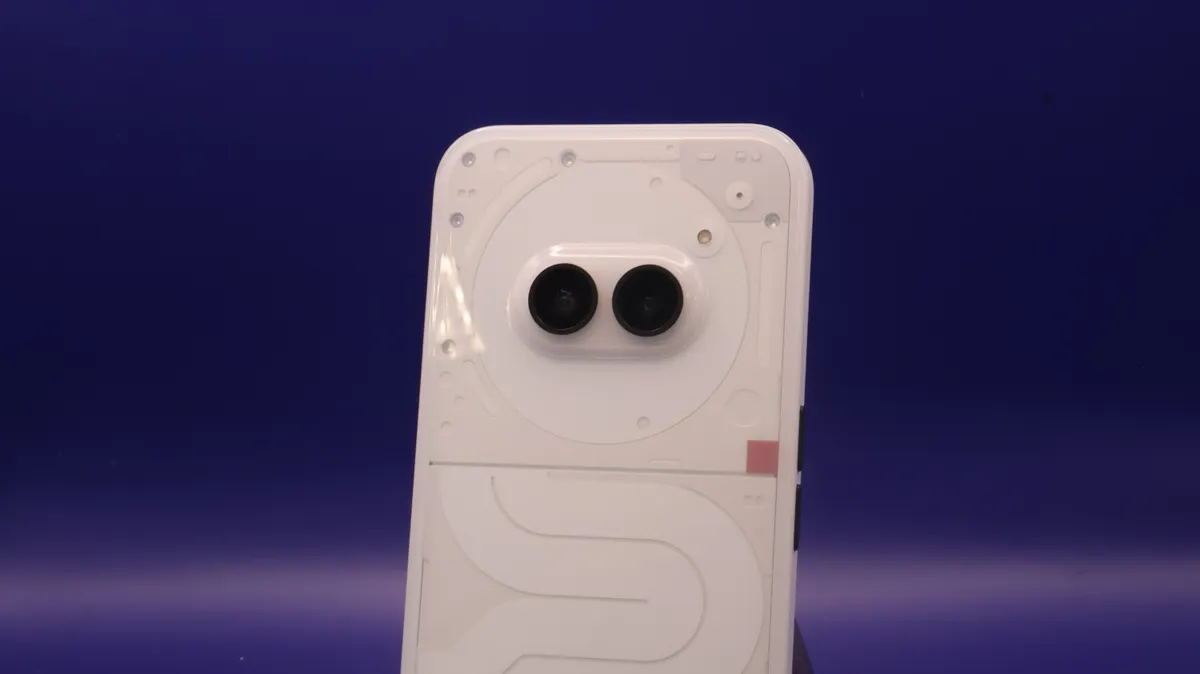
HiLight, and HiLight Studio. HiLight is new to the Pixel 11. A rear LED light alerts you to incoming calls from contacts you’ve marked as favourites, or from Gemini chats. You configure it under Settings > System > HiLight, where you can assign different colours to different contacts. That’s roughly where Google’s own implementation stops. For more control (more apps, more colour options) install the third-party HiLight Studio, which unlocks the feature’s full potential.
Camera Looks. Google is calling its new subtle filter system Camera Looks. Open the Camera, tap the controls button (lower right), then Looks. Four options appear: Original, Natural, Shadows, and Vanilla. They work like gentle adjustments to contrast and colour, the idea being to take the edge off the hyper-processed look that Pixel cameras can produce. Think of them as the Pixel equivalent of Photographic Styles on iOS.
Know your zoom limits. The Pixel 11 and Pixel 11 Pro Fold go up to 30x with Super Zoom; the Pixel 11 Pro and Pro XL go up to 120x with Pro Zoom. The important distinction: Pro Zoom uses generative AI to invent new detail based on existing pixels, it’s not just sharpening. Google says the 30x Super Zoom level uses AI of a different, non-generative kind, combining frames and analysing colours instead. If you’d rather your photos contain only what the lens actually captured, stay at or below 30x. For Pro Zoom shots, Google Photos saves both the AI-enhanced version and the raw digital zoom version, so you can compare and choose.
Magic Capture. Enable this from the Camera app (the icon to the left of the photo icon, under the shutter button). Start recording video, let it run, and when you stop, AI picks out still images that look like highlight moments from the footage. Useful for anyone who wants photos of an event without spending the whole time pointing a phone at it.
Pause Point. Google’s latest attempt at digital wellbeing is a mindfulness prompt that appears every time you open a specified app. Go to Settings > Digital Wellbeing > Pause Point to choose which apps get it. Worth noting: despite Google announcing it and including it in official support documentation, Pause Point does not appear to be live yet. Watch for it in updates over the coming weeks.
Custom vibration patterns. You can now assign specific vibration patterns to specific contacts. Open the Contacts app, tap a name, then Contact ringtone, and you’ll find vibration pattern options alongside the usual sound choices. You can also change the default vibration patterns for all calls and notifications (something that wasn’t previously possible) via Settings > Sound and vibration.
Built-in teleprompter. In the Camera app, switch to video mode, tap the settings button (top left), then the Creator tab. Toggle Teleprompter on, then tap the Teleprompter icon to enter your script. It advances automatically as you speak. No third-party app needed.
Pixel Search. The useful search bar isn’t the one on your home screen, it’s the one above the app grid. Swipe up to the app grid, tap the search box, and on first use you’ll get an introduction with a Go to Settings link. Follow it to Apps in search results, where you can tell Pixel Search which apps to dig into: Calendar, Drive, Gmail, Photos, and Settings are all options.
Rambler. An exclusive Gboard add-on for Pixel 11 devices. It handles natural speech rhythms, filler words, and corrections better than standard voice dictation, if you say ‘the meeting at 2pm… or rather 3pm’, the transcript will read 3pm. You can also prompt it to edit transcribed text with plain-language instructions. Load Gboard in any text input, tap the microphone button, and follow the Rambler introduction.
Charge screensaver. Go to Settings > Display and touch > Screen saver and select the new Charge option. Hook your Pixel 11 up to a magnetic wireless charger overnight and it becomes a minimal bedside clock with a charge progress bar, working in portrait or landscape.