


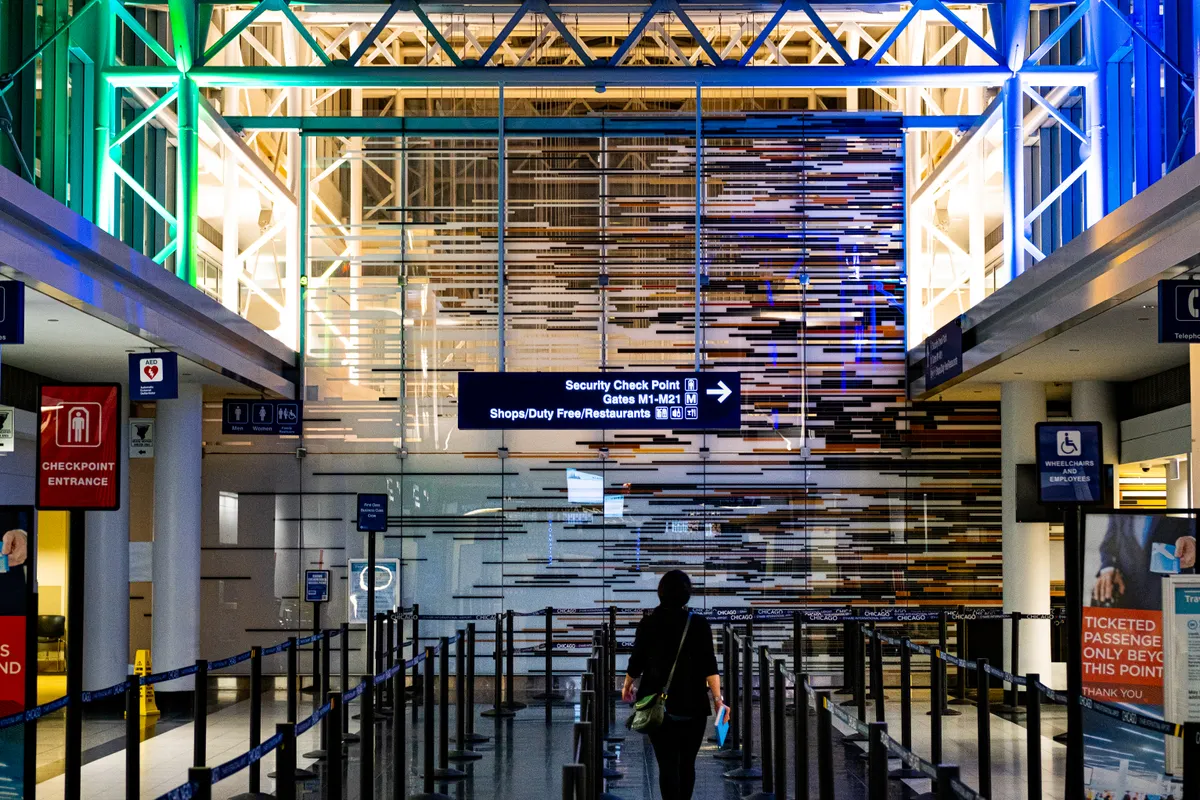
Google Wallet‘s Touchless ID feature has quietly become one of the most useful things on your Android phone, and a June 2026 expansion means Google Wallet Touchless ID now works at 65 airports across the United States, covering passengers flying with any of the more than 100 airlines that participate in TSA PreCheck. That’s a big step up from where this started. But the passport trick is only one of a stack of features most people walk past every day.
Here’s what the app can actually do when you dig past the tap-to-pay basics.
Google Wallet Touchless ID: What Changed and Why It Matters
According to the Transportation Security Administration, the June 2026 partnership with Google Wallet means eligible PreCheck passengers can now use Touchless ID regardless of which participating airline they’re flying with, rather than being limited to a specific carrier’s app or opt-in process. The programme has come a long way: as NerdWallet reports, it launched as a pilot in 2021 with Delta Air Lines at Detroit, then gradually added Alaska Airlines, United Airlines, and most recently American Airlines and Southwest Airlines in 2025 before this year’s broader Google Wallet rollout.
To use it, add your passport to Google Wallet, tap Add to Google Wallet > ID > ID Pass > Continue, and follow the prompts through the verification process. Once confirmed, you’ll be able to move through TSA PreCheck lanes at participating airports without fumbling for a physical document.
Location Prompts, Digitised Passes, and the Gmail Tricks Worth Setting Up
Beyond the airport, there’s a reasonable argument that location-based card suggestions are the feature most people ignore and most people would actually use. If you have loyalty cards, gym passes, or transit passes saved in Google Wallet, you can allow the app to surface the right one automatically when you’re nearby. Go to Settings > Apps > Google Wallet > Permissions to grant location access, then select the relevant card, tap the three-dot menu, and toggle on Get notifications for this card. Done.
Got a library card or parking pass with a barcode but no digital version? Google Wallet can handle that too. Take a photo of the card on your Android device, then go to Add to Google Wallet > Photo, select the image, add a name and description, and tap Add. The digital version works exactly like the physical one at any scanner.
Gmail integration is worth switching on if you buy tickets regularly. With Smart features enabled in Gmail and the relevant toggle active in Google Wallet (tap your profile icon, go to Settings > Add passes from Gmail), the app will pull in plane tickets and concert passes from your email automatically. No manual adding, no hunting through inboxes at the gate.
The same Gmail connection also now powers order tracking inside Google Wallet: itemised receipts, tracking numbers, and shipping status all show up in the app once you’ve enabled Smart features and package tracking in Gmail. In the Gmail app, go to Menu > Settings > General > Manage Workspace Smart features settings, turn on Smart features in other Google products, and tick the box for Package tracking.
Google Maps gets smarter with your transit card linked too. If you have a transit pass in Google Wallet and toggle on Use passes across Google (tap your profile photo, then Your data in Wallet > Manage pass data), Maps will show which legs of a route your pass covers and prompt a top-up if your balance won’t stretch to the full fare.
For parents, Google Family Link lets you set up supervised Google Wallets for children, giving them tap-to-pay access on their own Android device. Supervised wallets support loyalty passes, gift cards, boarding passes, and event tickets, as well as a secure balances feature that works similarly to a digital allowance.
If you need your transaction history out of the app entirely, for budgeting or record-keeping, Google Takeout is the route. Go to takeout.google.com, select Google Wallet, choose the data type, set the frequency and duration, and export. The download arrives as a JSON file, which can be converted into a CSV or Excel format.
Finally, if you’ve already saved your passport or driving licence as a private pass in Google Wallet, you can use that information to autofill forms in Google Chrome. Open the pass, tap the three vertical dots, and toggle on Use private pass across Google. It works like a password manager, but for identity documents.
With Google Wallet Touchless ID now reaching 65 airports and more than 100 PreCheck airlines, there’s never been a better moment to actually go through the setup properly.