


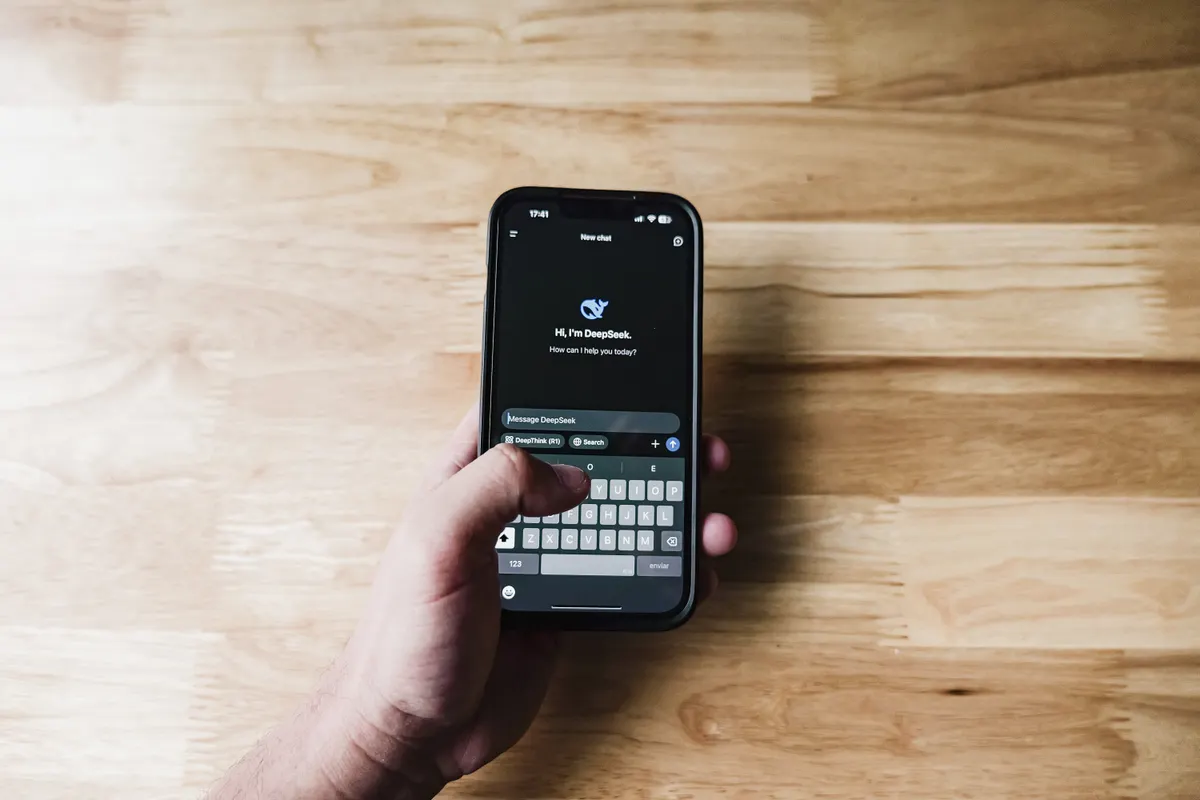
There are ten iPhone keyboard tips buried in iOS that most people walk past every day, and a few of them will genuinely change how quickly you get through a message. The keyboard looks roughly the same as it always has, but Apple has been quietly layering in gestures, tools and settings that reward anyone who bothers to look.
iPhone Keyboard Tips: The Basics Worth Getting Right First
Start with haptics. Go to Settings, then Sounds & Haptics, then Keyboard Feedback, and switch on Haptic Feedback. The iPhone’s Taptic engine produces a subtle click for every keypress, which goes a long way if you’re used to a physical keyboard. Worth knowing, though: Apple Support notes that turning on keyboard haptics might affect your iPhone’s battery life, so it’s worth keeping an eye on if you’re already running lean by the end of the day.
Next, the number-entry gesture that almost nobody knows. Instead of tapping the 123 key and switching layout, swipe from it. Hold your finger on 123, drag it to the number you want, then release. The keyboard snaps straight back to letters. One number, no layout change, done.
One-handed mode is essential if you’re using a larger iPhone. Tap and hold the Globe key and you’ll find options to dock the keyboard left or right. If nothing appears, go to Settings, then General, then Keyboard, then One-Handed Keyboard, and set your preference there. The layout shrinks and shifts towards your thumb. You can’t resize it the way you can with Gboard on Android, but it’s far easier to manage than stretching across a full-width keyboard one-handed.
Double-tap a word to select it. Triple-tap to grab the whole sentence. Four taps and the paragraph is highlighted. Once you’ve selected text, pinch inward with three fingers to copy it, pinch outward to paste. Swipe left with three fingers to undo. These gestures feel awkward for about thirty seconds, then become automatic.
Press and hold the Space bar and the keyboard becomes a trackpad. You can move the cursor anywhere in your text. If you keep one finger on the Space bar and place another on the screen, you can select text with precision. Much less fiddly than dragging the cursor handle.
The Features That Save the Most Time Over a Week
Text Replacement is underused. Go to Settings, then General, then Keyboard, then Text Replacement. Add a shortcut (a few characters) and the phrase it expands to. Your address, an email sign-off, a standard reply you send a dozen times a week. Every one of those saves a small amount of time per use, and it adds up.
The camera-to-text trick is worth knowing too. Point the iPhone camera at any printed or handwritten text, and iOS will frame it with a yellow border and show a Live Text button. Tap it, select what you want, copy it, then paste it into any text field. No retyping.
If you regularly type in two languages, go to Settings, then General, then Keyboard, then Keyboards, then Add New Keyboard. Choose your second language and add it to your existing keyboard rather than creating a separate one. The keyboard will detect which language you’re using mid-message and adjust its suggestions accordingly.
When autocorrect starts suggesting things that make no sense (or keeps surfacing words from a group chat you’d rather forget) you can wipe the slate clean. Go to Settings, then General, then Transfer or Reset iPhone, then Reset, then Reset Keyboard Dictionary. It clears out everything the keyboard has learned and starts fresh.
Writing Tools and Apple Intelligence: What You Actually Need to Set Up
If you have an iPhone 15 Pro or later, Apple Intelligence brings Writing Tools into most text fields, including Notes and Mail. Select your text, tap Writing Tools from the pop-up menu, and you can ask Siri to shorten it, make it more formal, or check grammar and spelling. According to Business Insider, you’ll need to update to iOS 18.1 and sign up via a waitlist in the Settings app to access Apple Intelligence. With iOS 18.2, Business Insider reports that OpenAI’s chatbot also becomes available through Siri and the AI writing tools. The proofreading side of Writing Tools costs nothing extra (no subscription required) which makes it worth switching on for anyone who sends a lot of text and would rather not reread everything manually before hitting send.