


You open a photo you’ve had for years, maybe the only decent shot from a trip, a scan of an old family picture, or something you shot yesterday, and instead of the image, you get a gray box, a garbled mess of color blocks, or a flat error saying the file can’t be displayed. The file’s still there. It has the right size on disk. It just won’t show you what it’s supposed to.
The instinct a lot of people have at this point is to try converting the file to a different format, or opening it in five different apps hoping one of them handles it better. Both of those can actually make things worse. Corrupted photos need a specific kind of care, and understanding what actually broke inside the file changes how you approach fixing it.
What’s Actually Wrong With the File
A photo isn’t just a grid of pixels sitting in a file. Formats like JPEG compress the image using a specific set of rules, and the file also carries header information that tells software how to decode all that compressed data back into something viewable. When a photo gets corrupted, the damage usually falls into one of two categories: the header or file structure is damaged, which confuses software trying to open it even though the actual image data underneath might be fine, or the image data itself got scrambled or partially lost, which is the harder problem since the pixels themselves are affected.
This is roughly the same split you see with corrupted video files, just at a different scale. A broken header is often recoverable because nothing about the picture itself changed, just the instructions for reading it. Scrambled pixel data is tougher, since you’re trying to reconstruct something that’s actually missing.
Why “Losing Quality” Is the Real Risk
Here’s the part that trips people up. Even when a corrupted photo can be opened again, a lot of common fixes quietly degrade it in the process. Converting a damaged JPEG to PNG and back, for instance, doesn’t fix corruption, it just forces software to guess at the missing pieces and fill them in with whatever looks plausible, which is a nice way of saying it makes things up. Same with running a file through automatic “repair by re-saving” tricks some photo viewers attempt. You often get an image that opens, but with visible artifacts, color shifts, or soft, blurry patches where the software filled in gaps it couldn’t actually recover.
This matters most with RAW files, since a RAW image from a DSLR or mirrorless camera carries far more actual data than a JPEG, and generic tools that don’t understand the specific RAW format your camera uses can strip out information during a “fix,” leaving you with a photo that opens but is a shadow of the original in terms of detail and color accuracy.
The goal with proper photo repair isn’t just “make it open.” It’s reconstructing the image using the data that’s actually still there, rather than patching over gaps with guesses.
Common Reasons Photos End Up Corrupted
A few patterns come up again and again.
The camera or phone lost power mid-save. Just like video, a photo file needs to be fully written and its header finalized to be readable. If the device dies, the card gets pulled, or the app crashes right as a photo is being saved, you can end up with a file that exists but never finished being written properly.
The storage card or drive has bad sectors. As cards and drives age, portions of them start to fail, and a photo whose data happens to land on a failing section of the card can come out with genuine gaps or garbled sections in the image itself, not just a broken header.
A transfer got interrupted. Copying photos off a card, especially in bulk, means moving a lot of data, and anything that breaks the connection partway, a loose cable, a sleeping phone, a computer losing power, can leave you with a partial file that looks complete in your file browser but isn’t.
The file was edited or converted by software that crashed. Editing apps that fail mid-save, or conversion tools that choke on a format they don’t fully support, can leave a photo that’s technically saved but internally broken, especially risky if it overwrote your only copy of the original.
The photo was already fine, but got damaged by a bad repair attempt. This one’s avoidable and common. Running a corrupted photo through the wrong tool, or trying multiple “quick fix” apps in a row, sometimes compounds the damage instead of fixing it, since each attempt is working from an already-degraded file rather than the original.
Why Purpose-Built Repair Software Matters Here
This is really where the quality question gets decided. A generic file repair tool, or one built mainly for recovering deleted files rather than fixing damaged ones, typically doesn’t understand the specific internal structure of JPEG compression or camera-specific RAW formats. It might get a photo to open, technically, but the process often introduces the artifacts and quality loss described above, because it’s not actually reconstructing the image correctly, just forcing something displayable out of broken data.
Stellar Repair for Photo is a powerful photo repair software built specifically around this problem. Rather than treating a photo like generic data, it analyzes the actual internal structure of the image, the header, the compression data, the format-specific details, and reconstructs the file using what’s genuinely recoverable from it, rather than filling gaps with guesses. It supports a wide range of formats, including JPEG and common RAW formats from major camera brands, which matters a lot if you’re working with photography rather than casual phone snapshots, since RAW files need format-specific handling to repair correctly without losing the extra detail they’re supposed to carry.
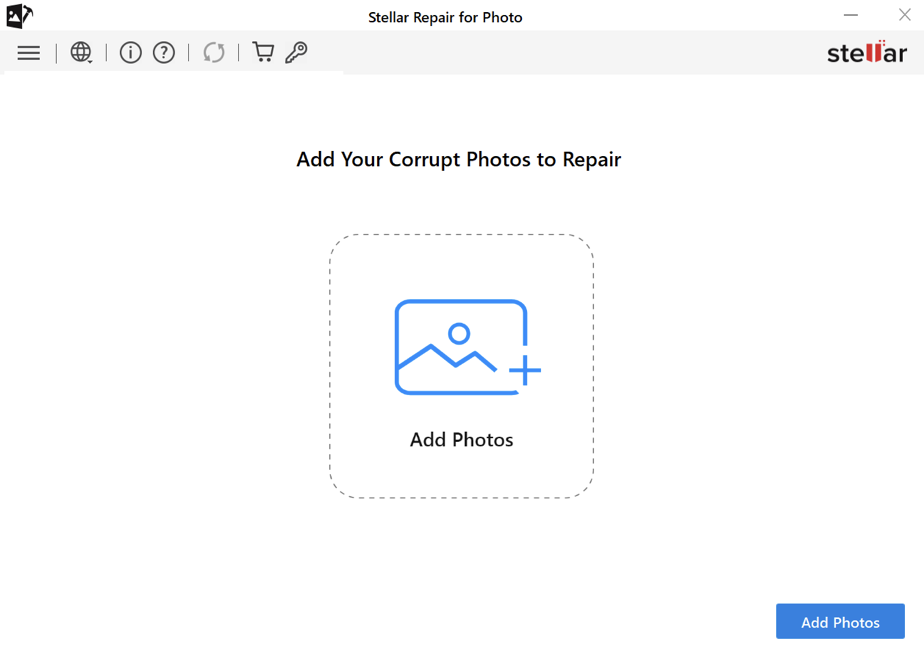
It also handles batch repair, which is genuinely useful if a whole card or folder got affected by the same underlying problem, a bad transfer or a failing card, rather than making you fix one photo at a time. And it lets you preview the repaired image before saving it, so you can actually judge the quality of the result yourself instead of hoping for the best.
The Right Order of Operations
If you’re dealing with a corrupted photo right now, a few things matter before you touch any software.
Make a copy of the corrupted file first, and work on the copy. If a repair attempt doesn’t go well, you want the original damaged file still available to try again, ideally with a better tool, rather than having overwritten your only version.
Stop using the card or drive the photo came from if you haven’t already moved it off. If the corruption traces back to a failing card, continuing to use it risks damaging other files too.
Avoid running the file through multiple tools in sequence hoping one works. Each pass is a chance to compound the damage rather than fix it. Pick a tool built for photo repair specifically, try it once, and check the result.
Check the preview carefully before saving over anything. This is the point where you can actually see whether the fix preserved detail and color accurately, or whether it’s papering over gaps in a way that’s noticeably softened or distorted the image.
What Repair Can’t Do
It’s worth being realistic here too. If the actual image data is genuinely destroyed, not just disorganized but truly gone from the sectors it was stored on, no software can invent detail that no longer exists. A photo with a small section of missing data might come back looking complete and sharp, while one with extensive data loss might only be partially recoverable, with some areas necessarily softer or reconstructed with less certainty than others. The honest goal is recovering what’s actually still there as faithfully as possible, not manufacturing detail that was never captured.
Most real-world photo corruption, though, comes from the fixable categories: interrupted saves, bad sectors affecting part of a file, broken transfers. In those cases, the bulk of the image data survives, and the right tool can reconstruct something very close to the original rather than a degraded approximation of it.
Preventing This From Happening Again
A handful of habits cut down on photo corruption substantially. Let your camera or phone finish writing a photo before pulling the card or closing the app, and avoid yanking a card out the moment you’re done shooting. Buy storage from reputable brands and retire cards that have thrown even one error, since a card that’s glitched once tends to do it again. Keep transfers on stable power and wait for explicit confirmation that a copy finished before disconnecting anything. And when editing or converting photos, always work on a copy rather than the original, so a crash mid-save doesn’t cost you the only version you have.
A corrupted photo feels like a loss in a way that’s hard to undo, especially when it’s the only copy of something that can’t be reshot. But the underlying data is very often still mostly intact, and the difference between a photo that comes back looking right and one that comes back looking worse than before usually comes down to using a tool that actually understands photo formats rather than one that’s just trying to force the file open. Get that part right, and quality is rarely the thing you have to sacrifice to get your picture back.